There is often a situation when the size of the database becomes large, and it is necessary to determine which tables occupy a significant amount. In this article, we'll look at how to do this.
Step 1: Defining Large Tables
First, we need to find out which tables have a lot of weight. For this:
- We go to Admin panel Bitrix.
- Go to the section Settings → Efficiency → Tables.
- On the right in the column Size (or Data size) changing the sorting from larger to smaller.
Now we can see which tables have a large amount of data.
Step 2: Clearing Tables
After we have identified the large tables, we proceed to clean them up. It is important to remember that it is simple to delete all records in the table using the operator DELETE might not be the best solution.
Consider example #1.: table b_user_session It has a capacity of 1.1 GB and stores information about user sessions. To delete old entries, use the following PHP command:
\Bitrix\Main\Session\Handlers\Table\UserSessionTable::deleteOlderThan(86400);
This command deletes session records older than a day (86,400 seconds).
Another common case (Example #2) is the occupancy rate of the Web analytics module tables, such as b_stat_XXX. To clean up these tables:
- Go to the settings of the Web analytics module: Settings → Product Settings → Configuring Modules → Web analytics.
- In the tab Storage time first, you need to change the number of days the history is stored, and then clear the old history.
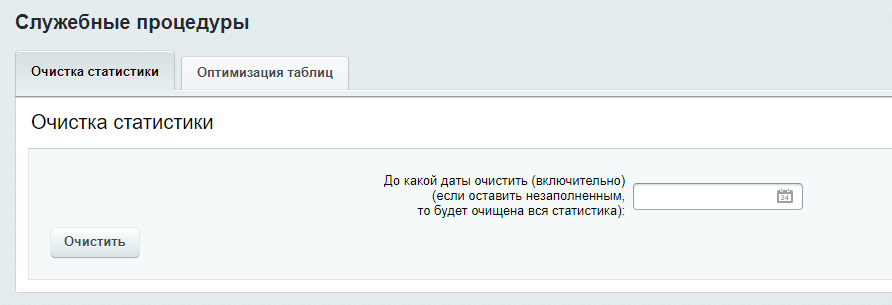
- We go down to Official procedures and we clean up the statistics before the required date. After that, turn on Optimizing tables.
Example #3: Large files. Search for and delete unnecessary content on the site that contains large files.
It is convenient to search for them using a database table. b_file. To search for files, sort the entries in the table in descending order. FILE_SIZE to see the largest files on the site.
Step 3: Checking the size of the MySQL database
To check the size of the MySQL database in Bitrix:
- Log in to the server via
putty. - Executing the command:
mysql -u bitrix0 -p, wherebitrix0— this is a database user. We enter the password that is stored in the file/bitrix/php_interface/dbconn.php: - We execute the following SQL query:
$DBLogin = "bitrix0";
$DBPassword = "Iuec+U9qGF0p(oqs9kqZ";
SELECT table_schema "database_name", sum( data_length + index_length )/1024/1024 "database size in MB" FROM information_schema.TABLES GROUP BY table_schema;
Replace database_name in the name of your database. For example:
$DBName = "sitemanager";
You will receive information about the size of the database, for example:
+--------------------+---------------------+
| sitemanager        | database size in MB |
+--------------------+---------------------+
| information_schema |          0.17187500 |
| sitemanager        |        4901.89062500 |
+--------------------+---------------------+
2 rows in set (0.03 sec)
That's it! In the future, we will supplement the article with useful tips on optimizing the Bitrix database and deleting old records in tables.